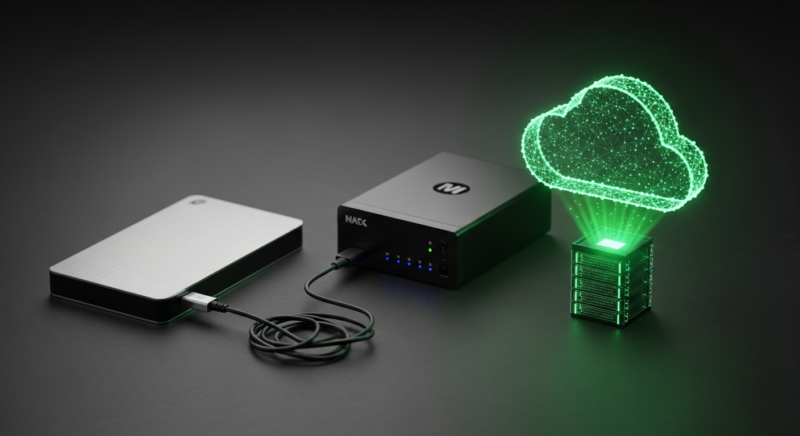
The right backup choice for most small businesses is not cloud or local backup alone — it’s knowing what each one is good at and where each one falls short.
If you pick the wrong setup, the damage shows up fast. A slow restore can leave your staff sitting around waiting. No off-site copy can turn one dead server, stolen laptop, or ransomware hit into a real business loss. A cloud-only setup can also drag if your internet is slow or your files are huge. This matters most for businesses with 5–50 employees, shared files, Microsoft 365 data, a server or NAS, and no time to babysit backups.
Local backups are usually faster to restore, while cloud backups are usually better for off-site protection and easier growth.
What’s the Real Difference?
Traditional backup usually means your data is copied to something you physically own in the office. That could be a USB drive, a backup appliance, or a NAS.
Cloud backup means your data is copied over the internet to a provider’s storage. You pay for the space and service instead of buying all the hardware up front.
The biggest reason many small businesses like cloud backup is scalability and cost-effectiveness. You can add storage as you grow without buying another box, another drive set, or another server shelf. That keeps startup costs lower. It also makes budgeting easier.
But old-school local backup still has a real advantage. Traditional on-premises backups offer faster recovery times and on-site accessibility because the data is sitting nearby on disk-based systems, not coming back through your internet connection.
That matters more than people think. Backups are not just about having a copy. They’re about how fast you can get back to work.
What This Costs a Business if You Get It Wrong
The main business problem is downtime. If your backups are missing, too slow, or never tested, you can lose hours or days.
And no, this is not rare. I see businesses find out their backup was broken only after someone deletes a folder, a PC dies, or ransomware locks a server. That is the worst time to learn.
Here’s what the pain usually looks like in the real world:
- A staff member deletes a shared folder and needs it back right now.
- A Windows update or a bad hard drive knocks out one PC holding local files.
- A server dies, and nobody knows how recent the last backup actually is.
- Ransomware hits the network and also encrypts anything plugged in on-site.
- Your office internet goes down, and your cloud-only restore crawls to a halt.
For a small office, the real cost is usually labor, delay, missed billing, and customer frustration. If five people can’t work for half a day because a restore is taking forever, that’s real money gone. If accounting files or job documents are missing, you can also lose trust. That part is harder to fix.
| Backup Type | What It Usually Means for Your Business |
|---|---|
| Local only | Fast restores, but a fire, theft, flood, or ransomware hit can wipe out the same place your data lives. |
| Cloud only | Good off-site protection, but large restores can be slow if your internet is limited. |
| Both | Fast recovery for common problems and an off-site copy if the office has a bigger disaster. |
If you ignore this, you are basically gambling on two things: that nothing serious happens, and that your backup works exactly as expected under pressure. Those are bad bets.

Where Cloud Backup Wins
Cloud backup is usually the easier fit for growing businesses that do not want to keep buying hardware. It also helps a lot with human error.
That’s because many cloud systems automate comprehensive data protection with continuous monitoring for changes, file versioning to recover overwritten data, and 256-bit AES encryption. In plain English, it quietly keeps watching your data, keeps older versions, and protects it better than a once-in-a-while manual copy job.
That last part matters. Manual backups get skipped. People forget. Drives fail. The one person who “always handles it” goes on vacation.
Cloud backup also helps if your office has more laptops than desktops now. A local backup box in the building is great for office file shares, but it does not automatically protect a salesperson’s laptop from a hotel room or an employee’s Microsoft 365 data unless you set that up separately.
For many small businesses, cloud backup is the easiest way to get coverage across all the moving parts. Fewer gaps. Less babysitting.
Where Local Backup Still Wins
Local backup is still the fastest way to recover from common office problems. That’s why I rarely tell a business to rely on cloud backup alone.
If someone deletes a folder with 30 GB of files, restoring that from a local device is usually much quicker than pulling it back over the internet. Same thing if one workstation dies and you need data back before lunch.
There is also a simple comfort factor. Some owners sleep better knowing there is a backup device sitting in the building they can point to. I get that.
But local backup has a weakness people underestimate: if the office gets hit, the backup sitting next to the server can get hit too. Fire does not care. Neither does theft. Neither does ransomware if the backup is exposed the wrong way.
That is why local backup by itself is not enough anymore for most businesses.
What You Should Do Right Now
If you want the short answer, most small businesses should use both. Keep a local backup for speed and a cloud backup for off-site protection.
That gives you the best shot at fast recovery and disaster recovery. You need both.
There is one catch with cloud backup that trips people up: network bandwidth. If you back up large files, server images, or a lot of changes every day, your internet speed can become the bottleneck. That can slow backups, slow restores, and sometimes slow office work too.
Start with these checks:
- List what actually needs backup: server folders, Microsoft 365, line-of-business apps, laptops, and any NAS.
- Ask how long you can be down. One hour? One day? Be honest.
- Ask how much data you would lose if the backup ran last night and a problem happened at 4 PM today.
- Test one restore this week. Not next month. This week.
- Keep one local copy and one offsite copy if the data matters to the business.
If your internet is weak, your files are large, or your office depends on shared data all day, a hybrid setup usually makes the most sense. It is not fancy. It just works better.
If you’re not sure whether your current backup would hold up under a dead server, ransomware hit, or accidental deletion, Kusma helps small businesses check backup systems, fix gaps, and make sure restores actually work before you need them. That is a lot cheaper than finding out during downtime with your whole team waiting.